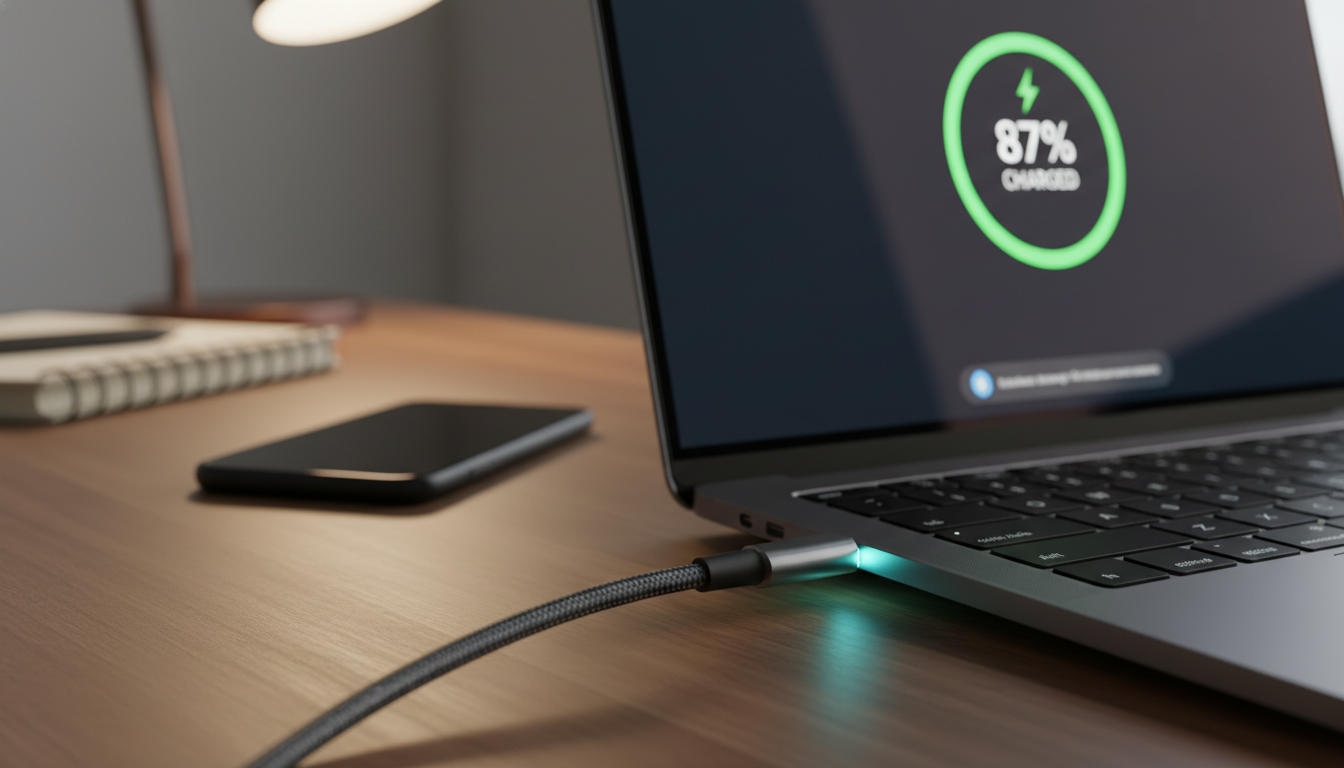
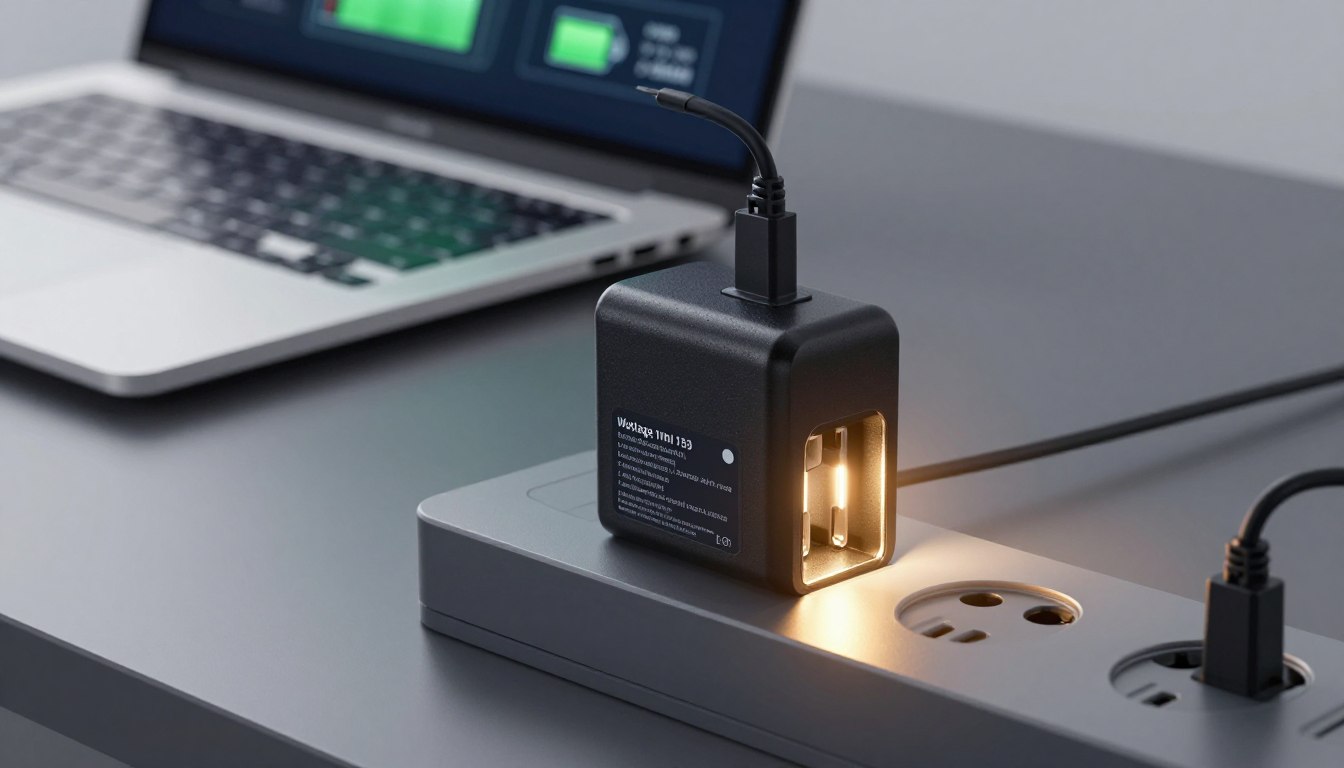
Is It Safe to Leave a Laptop Charging Overnight
Is charging laptop overnight safe? Find out the truth and learn best practices for charging your laptop to maintain its battery life.
Many people mean leaving a device plugged in for 8–12+ hours while they sleep. This guide separates two ideas of safety: personal risk (fire or heat) and battery health (slow capacity loss).
Modern models include built-in protection that stops the flow at full. Still, heat, age, and poor placement can stress the battery and shorten battery life over time.
We focus on practical habits that reduce stress without changing daily use. Advice covers Windows and Mac machines, typical home setups, and extra caution for older gear or tight, poorly ventilated spots.
Safety depends on where the device sits, the workload it runs while plugged in, and whether the charger matches the maker’s specs. This article is informational, not a repair manual, and will list warning signs that say you should unplug.
Coming up: how batteries manage full charge, heat-related risks, best habits, safer overnight setup, and when to unplug.
Key Takeaways
- Leaving a machine plugged in for long periods is common and has two safety angles: personal risk and battery health.
- Most modern batteries stop accepting a full charge, but heat and age still matter.
- Proper placement and the correct charger reduce hazards and extend battery life.
- This guide targets everyday users on Windows and Mac with practical, easy habits.
- Watch for warning signs like excess heat, swelling, or unusual smells—then unplug immediately.
What “Safe” Really Means When a Laptop Is Plugged In Overnight
Safety here mixes two ideas: whether the system risks harm to people or property, and whether long plug-in time harms the battery or components. Both matter, and they depend on context rather than a single rule.
Overheating risk versus overcharging risk
Today’s notebooks use control circuits to prevent continuous current after a full charge. That protection makes true overcharging rare.
But the unit can stay warm for hours. That sustained heat, not extra volts, causes most long-term damage to batteries and the computer’s other parts.
When a plugged-in device becomes unsafe
Safety changes with charging time, airflow, workload, charger quality, and age. Covered vents, soft surfaces, dusty fans, or heavy apps are realistic triggers.
Rule of thumb: if the case feels hot or the fan runs constantly, unplug and move the device to a hard, cool surface. Use sleep, hibernate, or low-power modes to lower heat while using laptop at night.
How Modern Laptop Batteries Handle a Full Charge
Battery controllers in recent notebooks actively manage top-end charging to reduce wear.
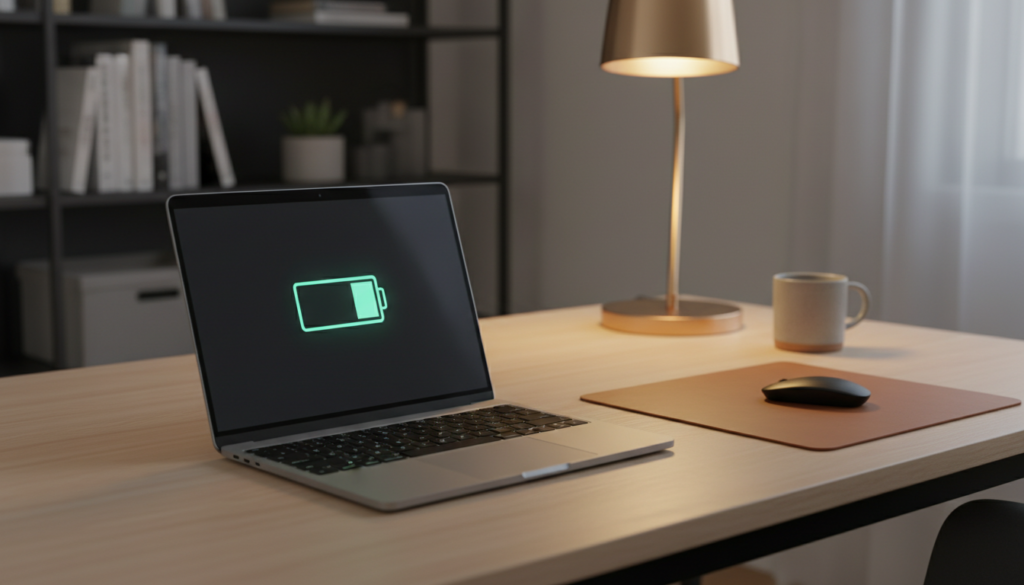
Built-in protection limits current once cells near their target voltage. The system either stops charging or uses short, occasional top-up pulses to keep a cell fully charged without forcing continuous current.
What overcharge protection does
Protection circuits regulate voltage and cut charge acceptance at the top end. This prevents classic overfill and keeps the pack safe from excess current.
Why 100% can still cause stress
Keeping a battery at or near 100% raises cell voltage. Higher voltage increases chemical stress, which slowly reduces overall life and capacity over months and years.
Voltage, power, and real-world effects
Higher state-of-charge means higher voltage inside cells. That voltage, not a charger “pushing” power constantly into a charged battery, drives wear.
“The charger rarely forces energy in at full — the battery system manages topping behavior.”
- Signs of wear: shorter runtime, early low-battery warnings, and occasional performance drops under load.
- Protection helps, but heat and environment remain the bigger overnight risks.
Charging Laptop Overnight: The Biggest Risks to Watch For
Heat is the single biggest risk when a notebook stays plugged in for long periods. Sustained high temperature shortens lifespan and can stress sensitive components. Over hours, even modest warmth causes chemical wear in cells and can warp parts.
Excessive heat and component harm
Excessive heat reduces the lifespan laptop battery and raises the chance of damage to nearby circuitry.
When temperatures stay high, batteries lose capacity faster. Other parts may throttle or fail.
Why soft surfaces trap heat
Placing a device on a bed, blanket, or carpet blocks intake and exhaust vents. Fabric acts like insulation and traps warm air beneath the base.
A unit on fabric is higher risk than the same unit on a hard, flat surface with clear airflow.
Workload and heat buildup
Demanding tasks while charging—gaming, video editing, or heavy multitasking—increase CPU and GPU output. That extra load adds thermal energy and raises internal temperatures further.
Extreme temperatures and safe range
Extreme temperatures in homes can mean direct sun, a heater vent, a hot car, or a cold garage. Aim to keep the device between 15°C and 35°C.
Staying in this range reduces battery stress and improves charge efficiency.
- Warning signs: hot chassis, constant high fan speed, thermal throttling, or sudden shutdowns.
- Outcomes: degraded capacity, instability, and in rare cases, safety hazards.
- Next step: reduce risk by improving placement, lowering load, and using built-in power limits.
| Risk | What to watch for | Quick mitigation |
|---|---|---|
| Trapped heat on fabric | Warm base, slow fan, blocked vents | Move to hard surface; clear airflow |
| High workload | Loud fans, high CPU/GPU use, hot case | Pause heavy apps; use low-power mode |
| Extreme room temps | Direct sun, heater proximity, very cold space | Relocate to 15°C–35°C zone |
Best Charging Habits to Protect Laptop Battery Life
How you top up daily determines much of your battery’s usable years. Small, consistent habits reduce stress on cells and help the device retain capacity over time.
When to plug in: Start a recharge around 20% rather than letting the pack fall to 0%. Deep discharges create more wear than frequent, partial top-ups.
Aim for a mid-range charge for longer life
The sweet spot for many users is roughly 40%–80%. Staying in that range lowers chemical stress and improves long-term lifespan.
Practical steps: top up during breaks, unplug once full if convenient, and avoid leaving the device at 100% for days. If you commute, prioritize a fuller charge for the day. If you mainly work at a desk, favor mid-range limits.
Many systems offer built-in charge caps (often 60%–80%). Enable these to extend life without manual unplugging.
| Scenario | Recommended action | Outcome |
|---|---|---|
| Daily desk use | Keep charge in 40%–80% range | Better battery keep and slower capacity loss |
| Commuter or travel day | Top up to full before heading out | Reliable runtime, fewer sudden shutdowns |
| Long-term storage | Store at ~40% charge | Reduced cell stress and longer usable lifespan |
Expectation: all batteries wear out eventually, but these habits can slow decline and extend usable life by years.
Set Up a Safer Overnight Charging Environment
Preventing trapped warm air is the easiest way to reduce damage and preserve performance.
Proper ventilation keeps internal temperatures stable and cuts the risk of heat-driven damage. Keep vents clear of dust and debris so fans can exhaust warm air properly.
Keep vents clean and unobstructed
Dust blocks airflow and raises case temperature. Use a soft brush or short bursts of compressed air to remove buildup from intake and exhaust ports.
Choose a hard, flat surface
Place your device on a desk, table, or shelf rather than bedding or carpet. Hard surfaces reduce insulation and improve airflow under the base.
Mind room placement and moisture
Avoid radiators, sunny windowsills, and drafty doors. Extreme temperatures shorten component life and can lower performance.
Keep devices away from humid rooms and open drinks; moisture can damage electronics. Never power a wet unit or charger.
Quick overnight airflow checklist
- Follow the manufacturer’s lid position guidance (closed or slightly open).
- Leave at least two inches of clearance around vents.
- Do not stack books, clothing, or other items on top of the device.
These simple steps protect the battery and internal components, reduce thermal throttling, and help maintain reliable performance.
Use the Right Charger and Power Settings for Healthier Charging
A proper charger tuned to your model helps prevent overheating and keeps voltages stable. Correct hardware and thoughtful settings work together to reduce wear and improve overall safety when a device stays plugged in for long stretches.
Why the original charger matters
Manufacturer-approved adapters supply the exact voltage and amperage the computer expects. That match lowers the risk of heat, instability, and long-term cell stress.
Avoid cheap or unverified third-party options. Low-quality units may lack protection circuits and can deliver inconsistent power during long sessions.
What to check if you must replace a charger
- Match the rated wattage and voltage to the original.
- Use certified USB-C PD chargers where supported.
- Choose reputable brands with clear compatibility statements.
Battery conservation features and power settings
Enable built-in features like charge caps, adaptive charging, or optimized battery routines to limit time at full charge.
Lower screen brightness, stop background apps, and set reasonable sleep/hibernate timers. Avoid high-performance modes when the device is idle at night.
Software updates and long-term gains
Keep the operating system and power drivers current. Updates often include improved battery management and better thermal control.
Outcome: the right charger plus smart settings produce less heat, reduce time at high state-of-charge, and raise safety margins while keeping laptop uptime reliable.
When You Should Unplug Instead of Leaving It Charging All Night
Knowing when to remove the power cord can protect both battery health and device safety.
If you keep your laptop plugged in all the time
If you are constantly keeping laptop power connected, consider the best unplug moments. Use built-in charge limits or unplug once the pack reaches full to reduce long-term stress.
If you notice heat, swelling, throttling, or performance drops
Stop and inspect the unit if you smell burning, see swelling, or feel an unusually hot case. These are clear signs that continued mains power could damage battery or other parts.
Also watch for sudden slowdowns, loud fans, or repeated thermal throttling. Those performance issues mean the system is too hot to remain safely plugged in.
Extra caution for older laptops and aging batteries
Devices that are ten to twelve years old often use older cells and may be less tolerant. For older computers, unplugging sooner can prevent accelerated capacity loss and reduce the small risk of component harm.
- Stop-signs: bulging case, burning smell, swollen battery, or persistent overheating.
- Quick steps: power down, unplug, move to a cool surface, and contact manufacturer or a qualified technician.
Unplugging is not about fear; it is a practical habit to lower stress on the pack and extend lifespan laptop. Balance convenience with care: top up when you need full runtime, but avoid leaving devices plugged in when idle for many hours.
Conclusion
In everyday use, the main worry is not excess current but the heat and environment around the device while it stays tied to mains power. Keep the case cool and vents clear to avoid most risks, and remember this strong.
Practical summary: for most modern laptops, leaving a unit plugged in through the night is generally safe from true overfill. However, the best protection is simple: use the correct charger, place the device on a hard, ventilated surface, and avoid heavy tasks while it draws power.
Best long-term habit: aim to keep charge between about 40%–80% when possible, start recharging near 20%, and keep the room between 15°C and 35°C.
Tonight’s checklist: safe surface, clear vents, normal room temp, light or no heavy tasks, and no swelling or excess heat. If your device is old or runs hot, unplug and inspect before leaving it connected for long periods. Small changes now save time and extend useful life later.